VBA Join function: Syntax, Parameters, Examples, and Reference
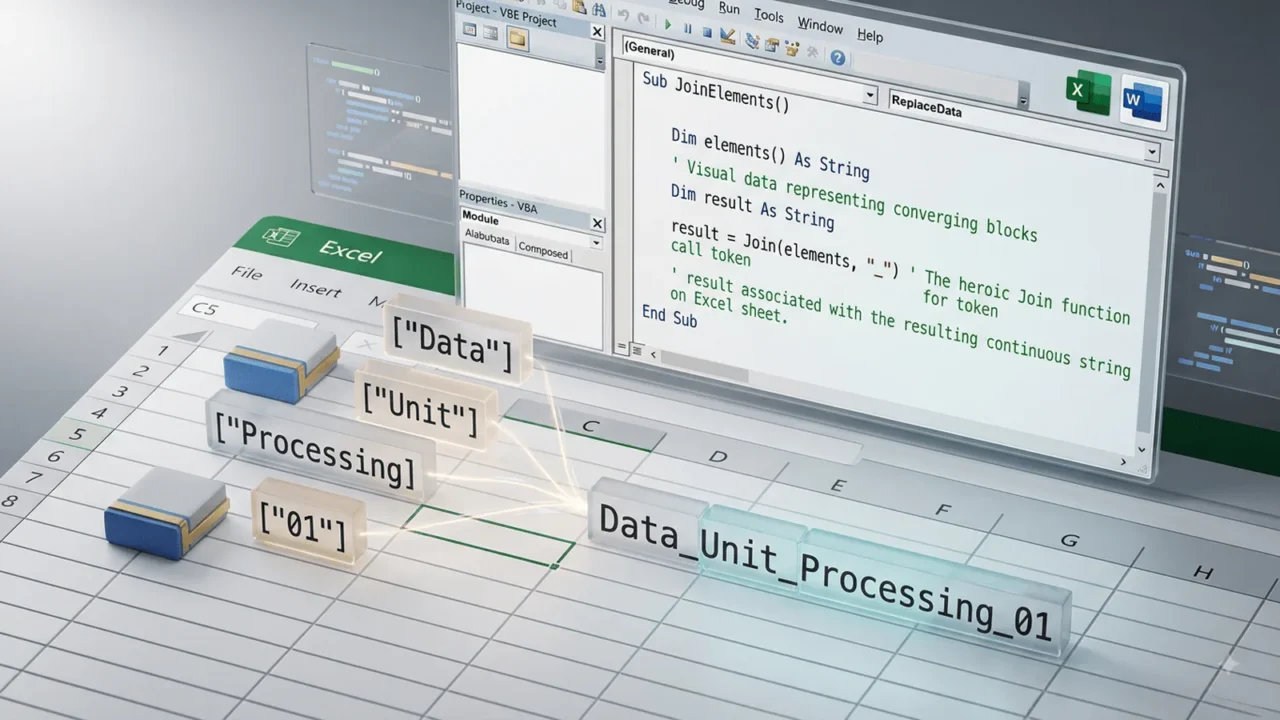
The VBA Join function combines the elements of a one-dimensional array into a single string separated by a delimiter. This reference focuses on the behavior you need when writing real Excel macros: the exact call shape, the meaning of each argument, the type of value returned, and the conditions you should validate before relying on the result. The examples are intentionally small enough to paste into a standard module, but they follow patterns that scale to larger workbooks.
Built-in VBA functions are valuable because they express common operations in a compact and recognizable way. Compact code is not automatically good code, however. A reliable call should make input assumptions explicit, use the correct data type, handle edge cases, and avoid silent conversions that may vary with workbook data or regional settings. This page treats Join as a reference entry rather than a recipe only, so you can return to it when checking syntax or debugging a macro.
What is the Join function?
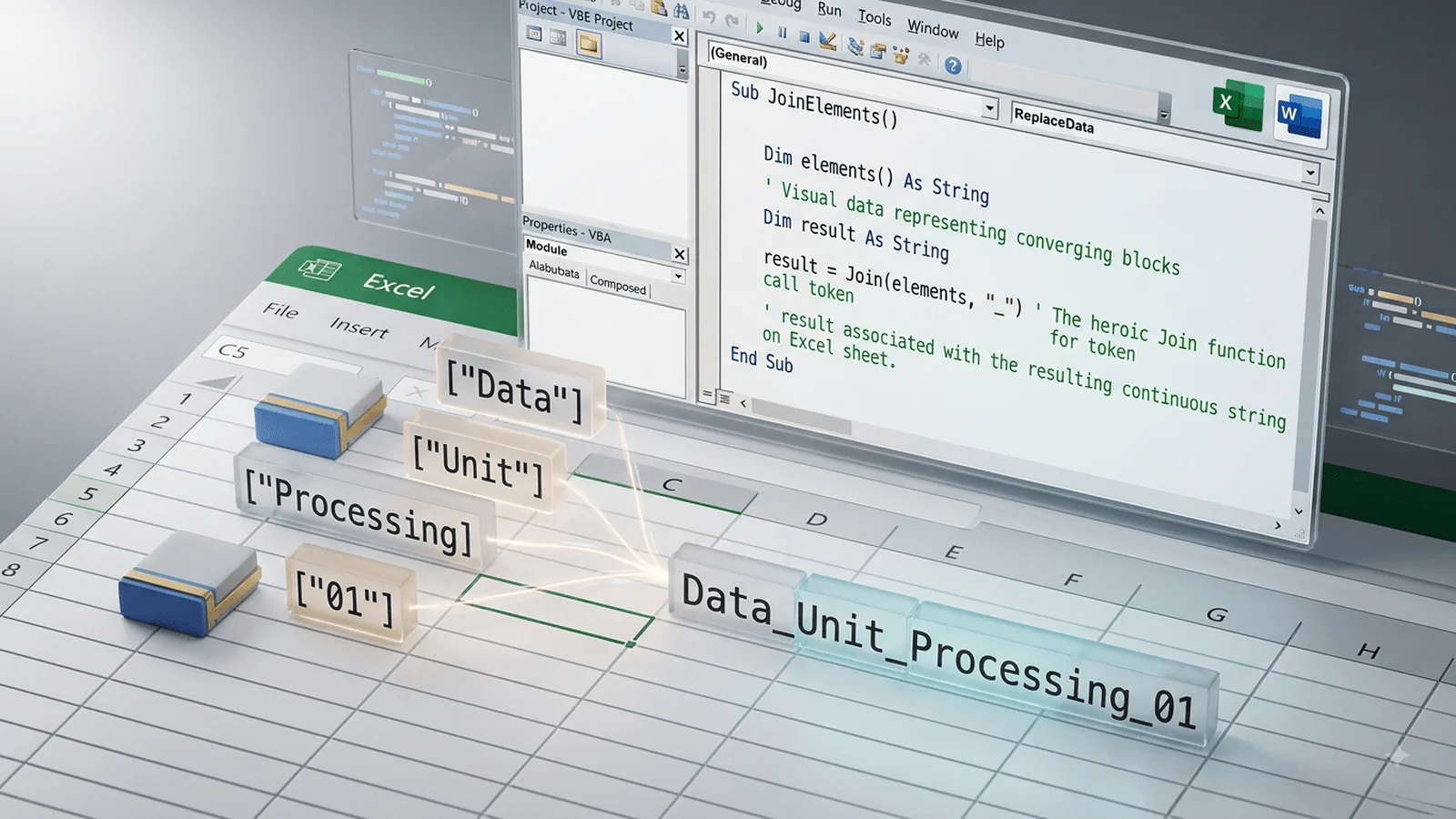
In VBA, Join combines the elements of a one-dimensional array into a single string separated by a delimiter. It is part of the language runtime, so you can use it in ordinary Excel VBA modules without adding a reference to another library. The function is most effective when the source value has already been validated enough for the operation you intend to perform.
The return behavior is equally important: A String containing all array elements separated by the chosen delimiter. Store that result when later code needs it, or use the function inline when the expression remains easy to read. If several transformations are chained together, intermediate variables usually improve debugging and make error handling clearer.
Why is Join important?
Join replaces code that would otherwise require manual loops, parsing, conversion, or user-interface handling. A built-in implementation is concise and familiar to other VBA developers. It also makes intent visible: a reader can recognize a search, conversion, date calculation, string extraction, or dialog operation immediately from the function name.
The practical benefit is consistency. When the same rule appears in imports, validation routines, report generation, and worksheet cleanup, using the same built-in function with the same validation rules reduces subtle differences between procedures. Reference-style code should therefore show not just the shortest expression, but the boundary conditions that keep that expression correct.
Syntax
| Element | Reference |
|---|---|
| Syntax | Join(sourcearray, [delimiter]) |
| Return value | A String containing all array elements separated by the chosen delimiter. |
Parameters and components
| Parameter | Description |
|---|---|
| sourcearray | Required one-dimensional array containing strings. |
| delimiter | Optional separator inserted between elements. The default is a space. |
Optional arguments should be supplied only when they communicate a real requirement. Leaving an optional argument at its default is fine when that default is part of the intended behavior. When behavior such as case sensitivity, a date interval, or a default button affects correctness, make the choice explicit rather than depending on a reader to remember VBA defaults.
Examples
Create a comma-separated line
Option Explicit

Sub JoinRegions()
    Dim regions As Variant
    regions = Array("North", "East", "West")
    Range("A1").Value = Join(regions, ", ")
End Sub
Combines a simple array into readable comma-separated text.
Rebuild cleaned Split output
Option Explicit

Sub NormalizeTags()
    Dim tags() As String
    Dim i As Long
    tags = Split("Excel, VBA, Automation", ",")
    For i = LBound(tags) To UBound(tags)
        tags(i) = LCase$(Trim$(tags(i)))
    Next i
    Range("A1").Value = Join(tags, ";")
End Sub
Cleans each token and then joins it with a new delimiter.
Build a multi-line message
Option Explicit

Sub BuildMessage()
    Dim lines As Variant
    lines = Array("Import complete", "Rows: 125", "Errors: 0")
    MsgBox Join(lines, vbCrLf), vbInformation, "Summary"
End Sub
Uses vbCrLf as the delimiter to create multiple lines.
Practical VBA examples
A useful way to apply Join is to place it inside a small routine with clear input and output boundaries. The next pattern reads a value from the active workbook, validates the minimum assumptions, and keeps the result in a separate variable before writing anything back. In real projects, this approach is easier to extend than a dense one-line expression because you can add logging, messages, or additional business rules without rewriting the entire statement.
Option Explicit

Sub ReferencePattern()
    Dim sourceValue As Variant
    Dim resultText As String

    sourceValue = Range("A2").Value
    If IsError(sourceValue) Then
        MsgBox "Cell A2 contains a worksheet error.", vbExclamation
        Exit Sub
    End If

    resultText = CStr(sourceValue)
    Range("B2").Value = resultText
End Sub
The generic pattern does not replace the topic-specific examples above; it shows the surrounding structure that makes a function call reliable. Put validation before the transformation, keep conversion deliberate, and perform worksheet writes after you know the result is acceptable. If the operation can fail for a predictable reason, handle that reason explicitly instead of suppressing all errors.
Code explanation
Option Explicit forces variable declarations, which prevents misspelled variable names from silently becoming new Variants. The examples use descriptive names such as sourceText, reportDate, or answer so the role of each value remains clear. When text-returning built-ins offer a dollar-suffixed form, examples use it where a String result is desired and Null is not expected.
Notice also that worksheet input is not trusted automatically. A cell can be blank, formatted oddly, or contain a value that does not match the assumption made when the macro was written. Reference-quality VBA performs inexpensive checks before the function call and makes the failure path understandable to the user or developer.
Common errors
| Problem | Why it matters |
|---|---|
| Passing the wrong array shape | Join expects a one-dimensional array. Range.Value often produces a two-dimensional array. |
| Unexpected empty elements | Empty items create adjacent delimiters; clean or filter them when required. |
| Assuming numbers are always accepted cleanly | For mixed Variant arrays, convert values deliberately when consistent formatting matters. |
Most mistakes with built-in functions are not syntax errors. They are assumption errors: expecting a delimiter that is not present, assuming text has a fixed length, converting ambiguous dates, accepting partial numeric strings, or forgetting that a function returns a new value rather than modifying the source. Testing realistic workbook data is the fastest way to expose these issues.
Best practices
| Practice | Recommendation |
|---|---|
| Validate external input | Check user, worksheet, file, and imported values before conversion or indexing. |
| Use explicit types | Store positions in Long, text in String, dates in Date, and Boolean tests in Boolean variables. |
| Prefer named constants | Use VBA constants instead of unexplained numeric literals when the function supports them. |
| Separate value from display | Do not confuse a formatted string with the typed number or Date used for calculation. |
| Test boundaries | Include empty, minimum, maximum, missing-delimiter, invalid-format, and locale-sensitive cases as appropriate. |
How Join behaves with Excel VBA values
Excel VBA frequently passes data around as Variants. A value read from Range.Value may represent text, a Double, a Date, Empty, Boolean, or a worksheet error. That flexibility is convenient, but it also means that a reference-quality macro should make its assumptions visible. Before calling Join, decide whether the procedure accepts all convertible values or only one strict kind of input. If the workbook is used by other people, this decision is part of the interface of your macro, not merely an implementation detail.
A useful pattern is to separate acquisition, validation, transformation, and output. First read the worksheet value or user response into a variable. Second validate the conditions that matter to the business rule. Third call Join and store its result in a variable with a meaningful name. Finally write the result to the sheet or use it in a decision. This structure makes debugging easier because you can inspect each stage independently in the Immediate window or with breakpoints.
Choosing data types for reliable results
Use String for text transformations, Long for character positions and counts, Double or Currency for numeric calculations according to precision needs, Date for date/time arithmetic, and Boolean for tests. Avoid leaving every variable as Variant simply because VBA allows it. Explicit types document intent and expose invalid assumptions sooner. They also make IntelliSense and code review more useful.
When converting between types, keep conversion separate from formatting. A formatted string that looks like a date is not the same thing as a Date value, and a string that looks numeric is not automatically a safe numeric input. Functions such as CStr, CDbl, CDate, IsNumeric, and IsDate can help you make these boundaries explicit. The exact checks depend on where the data originates and what later code expects.
Performance and maintainability
For most single-cell or user-interface tasks, the execution cost of Join is negligible. Performance problems usually come from reading or writing worksheet cells one at a time inside large loops, not from the built-in function itself. If thousands of rows are involved, read a range into an array, process values in memory, and write the result back in one operation. This keeps the code fast while preserving the clarity of the built-in function.
Maintainability also improves when magic numbers and unexplained expressions are avoided. Give intermediate values names, specify comparison modes when string case matters, and keep date interval codes or formatting strings close to a comment explaining their purpose. A future editor should be able to understand not only what the Join call does, but why its particular arguments are correct for the workbook.
Related topics
Join often appears beside other VBA reference topics. For declarations and predictable variable typing, review Dim statement and Option Explicit. For pattern-based text comparison, the existing Like operator reference is useful. Planned built-in-function entries such as Len, InStr, Replace, Split, and the date functions can be combined with Join to build larger parsing and validation routines.
Frequently Asked Questions About Join
What does the VBA Join function do?
The VBA Join function combines the elements of a one-dimensional array into a single string separated by a delimiter. It is most useful when your procedure needs a small, well-defined operation without writing custom parsing or conversion logic. The key is to understand its input types, return value, and edge cases. In production macros, validate external or worksheet input before calling it whenever invalid data could cause an error or misleading result.
What is the syntax of Join in VBA?
The core syntax is Join(sourcearray, [delimiter]). Required arguments provide the source value or action, while optional arguments refine behavior such as comparison mode, formatting, limits, or display. For maintainable code, use named VBA constants where the function supports them and assign the return value to a clearly typed variable when you need to inspect or reuse the result.
Can I use Join directly with Excel cells?
Yes. A worksheet cell value can usually be passed to Join, but Range.Value is a Variant and may contain text, numbers, dates, Empty, or an error value. Convert or validate the value when the function expects a specific type. This makes the macro predictable and prevents data-dependent failures that appear only when a user enters an unexpected value.
What is the safest way to handle errors with Join?
Validate the assumptions that matter before the call: required text should not be blank, numeric text should be checked before conversion, dates should be tested when they come from users, and calculated indexes or lengths should stay in a valid range. Prefer explicit checks over broad On Error Resume Next. Error handling should explain the problem and either exit cleanly or provide a controlled fallback.
Should I use the string-returning form such as Join$ when available?
When VBA provides a dollar-suffixed string function, the suffixed form returns a String directly instead of a Variant containing a String. It can make intent clearer and avoid some Variant overhead in string-heavy code. Use it only when the input cannot be Null, because a direct String-returning form may raise an error where the Variant form could propagate Null.
How should I test code that uses Join?
Test normal values, empty values, boundary values, and at least one invalid or unexpected case that could occur in the workbook. Also test data copied from external systems because spaces, locale-specific formats, mixed case, and hidden characters can change results. A small table of representative inputs and expected outputs is often enough to catch assumptions before the macro is deployed to other users.
Conclusion
The VBA Join function is most useful when its small syntax is paired with explicit assumptions. Know what each argument means, understand the return value, validate workbook or user input, and test boundary cases that are realistic for your data. The examples in this reference can be copied into the Excel VBA Editor and adapted by changing the source range, constants, or business rule while preserving the same validation-first structure.
Read More
VBA Val Function: Syntax, Parameters, Examples, and Reference
VBA UCase Function: Syntax, Parameters, Examples, and Reference
VBA Trim Function: Syntax, Parameters, Examples, and Reference
VBA Split Function: Syntax, Parameters, Examples, and Reference
VBA Round Function: Syntax, Parameters, Examples, and Reference
VBA Right Function: Syntax, Parameters, Examples, and Reference
VBA Replace Function: Syntax, Parameters, Examples, and Reference