In our previous tutorial, we learned how to create one-to-many and many-to-many relationships between tables using primary and foreign keys. However, a fundamental question remains: our database is now fragmented. Customers are in one table, orders in a second, and products in a third.
How can we put these puzzle pieces back together and generate a unified report (for example, displaying a customer’s name next to the product they purchased)?
The answer to this question is the beating heart of SQL: The JOIN statement.
What is a JOIN Statement?
Foreign Keys dictate rules to the database (e.g., asserting that an order must belong to a valid customer). But when we want to retrieve and report data, we need a command that temporarily stitches these tables together. The JOIN statement does exactly that: it combines records from two or more tables based on a related column between them (usually the primary and foreign keys).
In Microsoft Access (and SQL in general), there are three highly utilized types of JOINs, which we will dissect below.
1. Strict Intersection: INNER JOIN
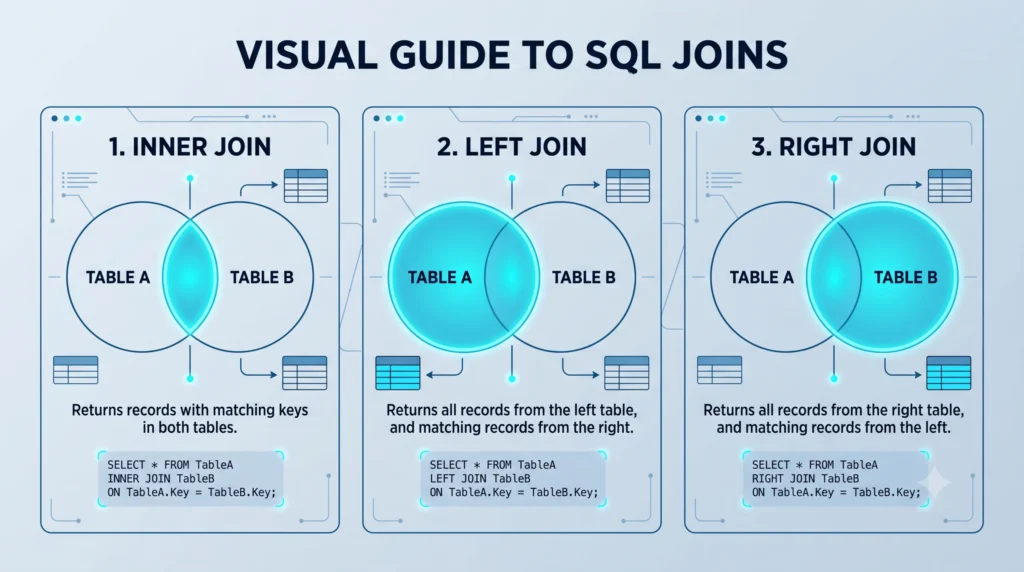
This is the most common type of join. An INNER JOIN returns only the records that have matching values in both tables. If you think of this in terms of a mathematical Venn Diagram, the INNER JOIN is the exact intersecting area of two circles.
Practical Example: We want to see a list of customers who have placed an order, along with their order dates.
SELECT Customers.CustomerName, Orders.OrderDate
FROM Customers
INNER JOIN Orders
ON Customers.CustomerID = Orders.CustomerID;
Code Analysis:
- The
FROM Customers INNER JOIN Ordersclause: Tells Access to link the Customers table with the Orders table. - The
ON ...clause: Specifies the joining condition. Simply put: “Link the records where the CustomerID in the Customers table is exactly equal to the CustomerID in the Orders table.”
Note: Customers who have never placed an order will not appear in this output.
2. Left Table Priority: LEFT JOIN
Sometimes, we want all records from the first (left) table, even if there are no matching records in the second (right) table. This is where LEFT JOIN (or LEFT OUTER JOIN) comes into play.
Practical Example: We want to see a list of all customers. If they have an order, display the order date next to their name. If they don’t have an order, leave that field blank (NULL).
SELECT Customers.CustomerName, Orders.OrderDate
FROM Customers
LEFT JOIN Orders
ON Customers.CustomerID = Orders.CustomerID;
This query is incredibly useful for finding “inactive customers” (those with a blank order field) and is heavily used in data analysis.
3. Right Table Priority: RIGHT JOIN
The RIGHT JOIN works exactly the opposite of the LEFT JOIN. It returns all records from the second (right) table, and only the matched records from the first (left) table.
SELECT Customers.CustomerName, Orders.OrderDate
FROM Customers
RIGHT JOIN Orders
ON Customers.CustomerID = Orders.CustomerID;
Technical Reality: In real-world programming, RIGHT JOIN is rarely used. Developers prefer to swap the order of the tables in their code and use a LEFT JOIN instead to maintain readability. However, understanding it is essential for grasping SQL logic completely.
Visual Summary: Understanding JOINs with Venn Diagrams
To make the differences between these three joins stick in your memory forever, the best approach is using a Venn Diagram. In the image below, imagine each circle represents a table. The highlighted colored sections show exactly which parts of the data (the intersecting records or all records from one side) are fetched in the final output for each JOIN command:
The Parentheses Nightmare in Access (Joining More Than Two Tables)
If you use databases like SQL Server or MySQL, joining three consecutive tables is very straightforward; you just stack the JOIN commands. However, the Microsoft Access processing engine (known as ACE/JET) is strictly rigid in this regard!
In Access, each JOIN operation can only combine two outputs together. Therefore, when a third table is introduced, you must use parentheses () to tell Access which two tables to merge first, and then link their result to the third table.
Let’s return to that confusing query we saw at the end of the many-to-many relationship article and dissect it:
SELECT
    Orders.OrderID,
    Products.ProductName,
    OrderDetails.Quantity
FROM
    (Orders INNER JOIN OrderDetails ON Orders.OrderID = OrderDetails.OrderID)
    INNER JOIN Products ON OrderDetails.ProductID = Products.ProductID;
What happened here?
- Access first enters the parentheses: it joins the
Orderstable with theOrderDetailsjunction table. - This combination is held in memory as a single “temporary table.”
- Now, Access steps outside the parentheses and links (
INNER JOIN) this temporary table with theProductstable.
Warning: If you forget the parentheses when joining three or more tables in Access, you will face the Syntax error in JOIN operation error. This is one of the biggest hurdles for beginners in Access!
A Behind-the-Scenes Look: JOINs in Design View
If all this code seems complex, don’t worry. When you add tables and drag fields towards each other (Drag & Drop) in the Access Query Design environment, Access creates relationship lines.
If you double-click on these relationship lines (the Join Properties window), you will see three options:
- Only include rows where the joined fields from both tables are equal (This is an
INNER JOIN). - Include ALL records from table 1 and only those records from table 2 where the joined fields are equal (This is a
LEFT JOIN). - Include ALL records from table 2 and only those records from table 1 where the joined fields are equal (This is a
RIGHT JOIN).
When you change these options, Access automatically writes the SQL codes we learned in this article in the background for you!
In the next tutorial of this series, we will move on to Data Modification and Deletion to learn how to change our table data using the UPDATE and DELETE statements, or remove redundant records using queries.
Read More
Master Access SQL Constraints and Validation Rules
Access SQL DISTINCT: Remove Duplicate Results Easily
Access SQL Views and Saved Queries: Complete Guide
Access SQL ORDER BY: Sorting Query Results Quickly
Access SQL Data Types and Field Definitions Guide