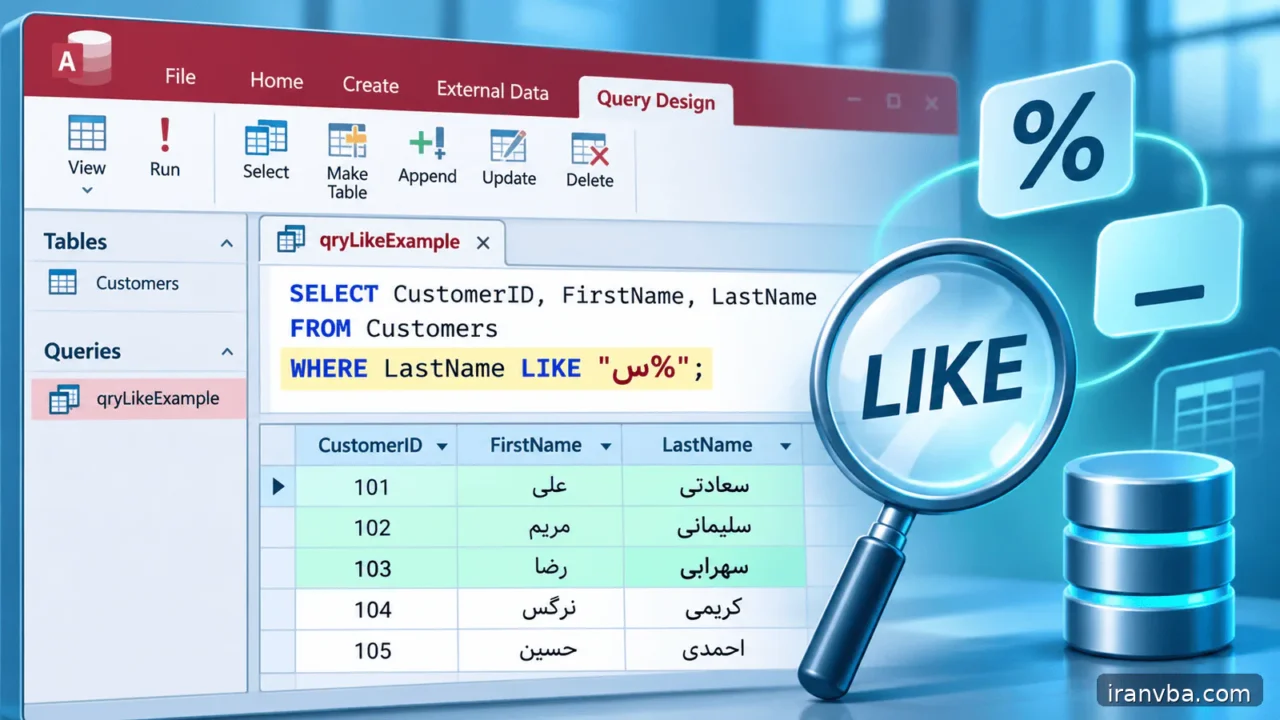
LIKE and Wildcards in Microsoft Access SQL: Practical Patterns
Exact equality works when you already know the whole value. Real users rarely do. They remember the beginning of a customer name, part of a product code or an uncertain spelling. LIKE in Access SQL turns those partial clues into a testable pattern without requiring a new table or a procedural loop.
This lesson focuses on the Access database engine rather than assuming that every SQL dialect behaves alike. It explains the traditional ANSI-89 symbols, alternative ANSI-92 settings, literal wildcard characters and DAO parameter binding. The goal is to design searches whose meaning remains clear when data and users are less predictable.
Concept and scope
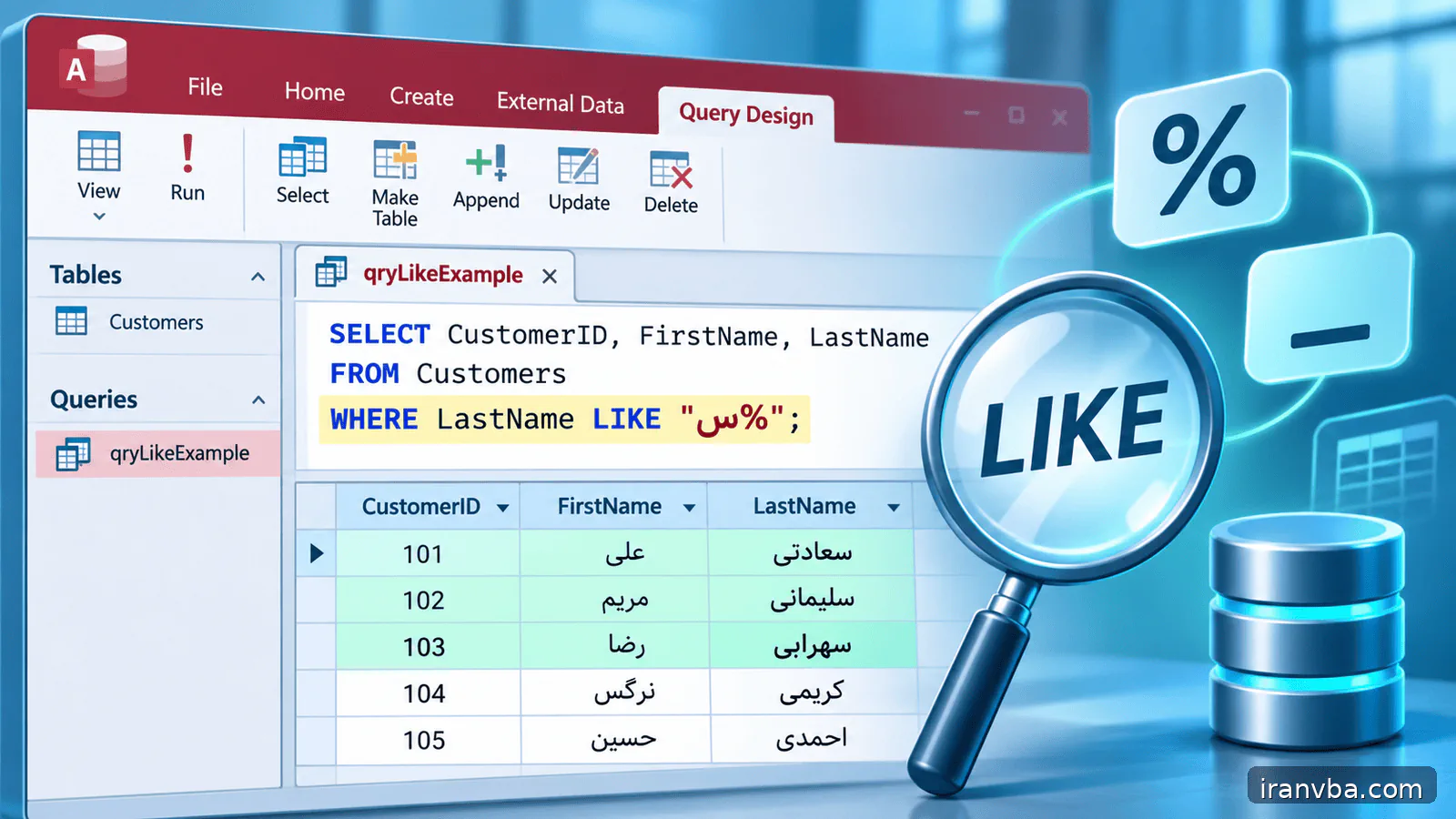
LIKE compares a text expression with a pattern. A wildcard stands for a permitted group of characters rather than a literal symbol. In the default ANSI-89 mode, the asterisk represents zero or more characters, the question mark represents one character and the number sign represents one digit. Square brackets can describe an allowed range or list of characters.
A prefix search such as “Al*” asks whether the name begins with Al; a contains search such as “*Al*” permits that sequence anywhere. These queries answer different questions. The difference matters when customers have initials, spelling variations or hyphenated names. Always decide what a match should mean before writing an expression.
Microsoft Access can also use ANSI-92 wildcard syntax in databases configured for it. That mode uses percent and underscore for variable and single-character matches. Do not mix the two syntaxes in one query and expect Access to guess. Check the current database setting and the provider or API through which a query is executed.
Working data and assumptions
Assume Customers has CustomerID (AutoNumber), CustomerName (Short Text) and Email (Short Text), while Products has ProductID, ProductCode and ProductName. Use names like Ali Trading, Alborz Office, Niloofar Services and Blue Atlas to distinguish prefix from substring matching. Include one code ending in digits and one containing a literal asterisk to exercise escaping.
Syntax and interpretation
A pattern follows LIKE in the WHERE clause. Access SQL can use double quotes around text in the usual Access query environment. A single quoted text literal also works in SQL statements, but it does not change which wildcard alphabet applies. The sample below assumes the default Access ANSI-89 setting.
Never treat a user-supplied search string as a fragment of SQL. Decide whether the user is supplying literal text or an advanced pattern, document the decision and bind the value using a typed parameter. Concatenate the wildcard outside the parameter only when the intended search is explicitly a prefix or a substring search.
SELECT CustomerID, CustomerName
FROM Customers
WHERE CustomerName LIKE "Al*"
ORDER BY CustomerName, CustomerID;
Worked examples
The following queries progress from a narrow prefix filter to a structured product code and a literal wildcard. Observe which part of the condition is fixed and which part permits variation; these distinctions drive useful search forms and reliable test cases.
Prefix matching
The asterisk permits any suffix, including an empty suffix. Ali Trading and Alborz Office qualify, while Blue Atlas does not begin with Al. Replace the literal with a parameter for reusable searches and decide whether the user should be allowed to supply an empty prefix.
SELECT CustomerID, CustomerName FROM Customers WHERE CustomerName LIKE "Al*";Position and digit patterns
The # wildcard accepts one numeric character in the final position, so A120 and A121 are matches while A12X is not. Store such codes as Short Text when their characters or leading zeros matter. This is a search pattern, not a substitute for a field validation rule.
SELECT ProductID, ProductCode FROM Products WHERE ProductCode LIKE "A12#";Searching for a literal wildcard
Wrapping the inner asterisk in brackets makes it literal; the two outer asterisks still match arbitrary text. It is useful when a catalog includes characters that the search engine normally treats as pattern operators. Test the exact character set used by the database before exposing this to users.
SELECT ProductID, ProductName FROM Products WHERE ProductName LIKE "*[*]*";Running the query from Access VBA
Create a temporary DAO QueryDef and bind a prefix parameter. Unlike concatenating arbitrary user input into a SQL string, assigning the text to a parameter keeps its apostrophes and punctuation separate from the query structure. This example searches the local Access database and prints the IDs and names of matches to the Immediate window.
Run this procedure from the VBA editor of an Access desktop database with a Customers table. Add a DAO reference if your project does not already expose its types. An empty prefix matches every non-Null name because the pattern becomes only an asterisk; validate the input and show a warning before reusing this logic in a public search form.
Option Explicit
Public Sub FindCustomersByPrefix()
    Dim db As DAO.Database
    Dim qdf As DAO.QueryDef
    Dim rs As DAO.Recordset
    On Error GoTo Fail
    Set db = CurrentDb
    Set qdf = db.CreateQueryDef("", _
        "PARAMETERS [pPrefix] Text (100); " & _
        "SELECT CustomerID, CustomerName FROM Customers " & _
        "WHERE CustomerName LIKE [pPrefix] & '*' " & _
        "ORDER BY CustomerName, CustomerID;")
    qdf.Parameters("pPrefix") = "Al"
    Set rs = qdf.OpenRecordset(dbOpenSnapshot)
    Do Until rs.EOF
        Debug.Print rs!CustomerID, rs!CustomerName
        rs.MoveNext
    Loop
CleanUp:
    If Not rs Is Nothing Then rs.Close
    Set rs = Nothing
    Set qdf = Nothing
    Set db = Nothing
    Exit Sub
Fail:
    Debug.Print Err.Number, Err.Description
    Resume CleanUp
End Sub
Checking results and edge cases
Try a prefix with two expected customers, then one with no matches. Insert one Null CustomerName if the schema permits it; LIKE does not make a Null name match. Compare prefix searching against a contains pattern. Finally test literal asterisks and a name with an apostrophe to make sure data is not misinterpreted as SQL syntax.
Common mistakes and corrections
A visually reasonable pattern can return no rows, too many rows or a runtime error if the wildcard mode or the field type is wrong. These are the most useful first checks:
| Symptom or cause | Correction |
|---|---|
| Percent sign returns no matches | The database may use ANSI-89 where * rather than % matches a sequence; check the setting. |
| Too many customers are returned | Change *name* to name* when the requirement is starts with rather than contains. |
| A real star is treated as a wildcard | Use [*] for a literal asterisk in an ANSI-89 pattern. |
| A text match unexpectedly ignores a record | Check for Null, trailing spaces, a different character and mismatched database/provider wildcard mode. |
Best practices for reliable queries
Prefer prefix searches when the user can supply the beginning of a value. Depending on indexes, data distribution and the provider, prefix patterns may be cheaper than patterns that begin with a wildcard; measure rather than promise a particular query plan.
Keep product codes as text if leading zeros or mixed characters carry meaning. A numeric field cannot preserve a string such as 00123 in the same way. Pattern matching also does not validate that a code is legal; store a validation rule separately from the search criterion.
For interactive forms, put the chosen match mode in the interface: starts with, contains, exact match or code pattern. A search that silently switches between these meanings is hard to explain and difficult to debug. Record the selected mode alongside a saved query definition.
A search with a leading asterisk may inspect many records and can be slower than a selective prefix condition. Before introducing extra indexes, check the row count, the length of text fields and the size of the real dataset. Wildcard behavior may also differ for queries sent through OLE DB compared with ordinary Access and DAO queries.
If the query returns names for display, add an ORDER BY with a stable tie-breaker such as CustomerID. LIKE decides membership, not presentation order. Do not assume that the insertion sequence or the last order shown in a datasheet will remain unchanged after a table grows.
Practice laboratory
Build a search form with a text box named txtPrefix and a command button. Begin by requiring at least two visible characters and by displaying the number of matches. Then create a second action for contains search and compare the results. Keep each mode as a separate, named query rather than a series of difficult string replacements.
For a harder test, add product codes A120, A121, B120 and A12X. Write separate patterns for codes beginning with A, codes ending in a digit and codes with precisely one unknown character. Record a table of expected matches before executing each statement. Repeat in an ANSI-92 test database only after converting every wildcard to that mode.
Related topics
The WHERE lesson explains the surrounding filter clause; the QueryDef lesson shows typed parameters; ORDER BY covers stable display. Together they turn an isolated LIKE expression into a maintainable search feature.
- Access SQL parameter queries with QueryDef: Parameter Queries in Access SQL with QueryDef and VBA
- ORDER BY in Access SQL: Access SQL ORDER BY: Sorting Query Results Quickly
- saved queries in Access: Access SQL Views and Saved Queries: Complete Guide
Frequently asked questions
How does LIKE in Access SQL differ from equals?
Equality checks a complete value, whereas LIKE can describe a family of text values through a pattern. With the usual Access ANSI-89 settings, Like “Al*” matches every non-Null name starting with Al. It does not guarantee any order for the rows. If the user already knows the full name, equality is simpler and should usually be preferred.
Why does the percent wildcard fail in Access?
Microsoft Access databases normally use ANSI-89 wildcards, where an asterisk stands for any sequence of characters. A percent sign belongs to the ANSI-92 family and may be treated as ordinary text in an ANSI-89 query. Check File, Options, Object Designers for the database setting, and be aware that provider behavior can differ from DAO queries.
How do I match exactly one digit in an Access code?
In the ANSI-89 pattern family, # represents one digit from zero through nine. A pattern such as “A12#” accepts A120 and A121 but rejects A12X and A1234. Store codes in a text field if their leading zeros or letters are meaningful. Pattern matching only filters existing data; it does not enforce validity during data entry.
Can I safely pass search text from an Access form?
Use a typed QueryDef parameter instead of interpolating arbitrary user text into the SQL statement. A query can define PARAMETERS [pPrefix] Text (100) and then use LIKE [pPrefix] & “*”. Bind pPrefix from VBA after validating length and the intended search mode. This keeps quotes in the data from changing SQL syntax, although the application must still decide how to handle wildcard characters in the input.
Does a LIKE pattern match Null values?
No. A Null field does not contain a text value to compare with the requested pattern. If you want missing customer names in the same result, express that policy explicitly, for example with an OR CustomerName Is Null condition. Do not silently replace unknown values with empty strings; they can mean different things in reporting and data quality checks.
Is a contains search always as fast as a prefix search?
Not necessarily. A pattern beginning with a wildcard gives an index less opportunity to narrow the search than a selective prefix pattern, although actual performance depends on the query engine, data distribution and available indexes. First verify both variants return the intended rows. Then compare execution time using realistic tables rather than assuming a short example predicts production behavior.
Conclusion
LIKE in Access SQL is simple only when the wildcard rules are explicit. Choose the desired match mode, know the database ANSI setting, parameterize variable text and test with names that should and should not match.
A reliable search is measured by its false matches and missed matches, not merely by whether it returns a datasheet. Once the result is correct, evaluate performance on realistic data and document the pattern for future maintainers.
Read More
Handling NULL in Access SQL: IS NULL, Nz and Empty Strings
Master Access SQL Constraints and Validation Rules
Access SQL DISTINCT: Remove Duplicate Results Easily
Access SQL Views and Saved Queries: Complete Guide
Access SQL ORDER BY: Sorting Query Results Quickly