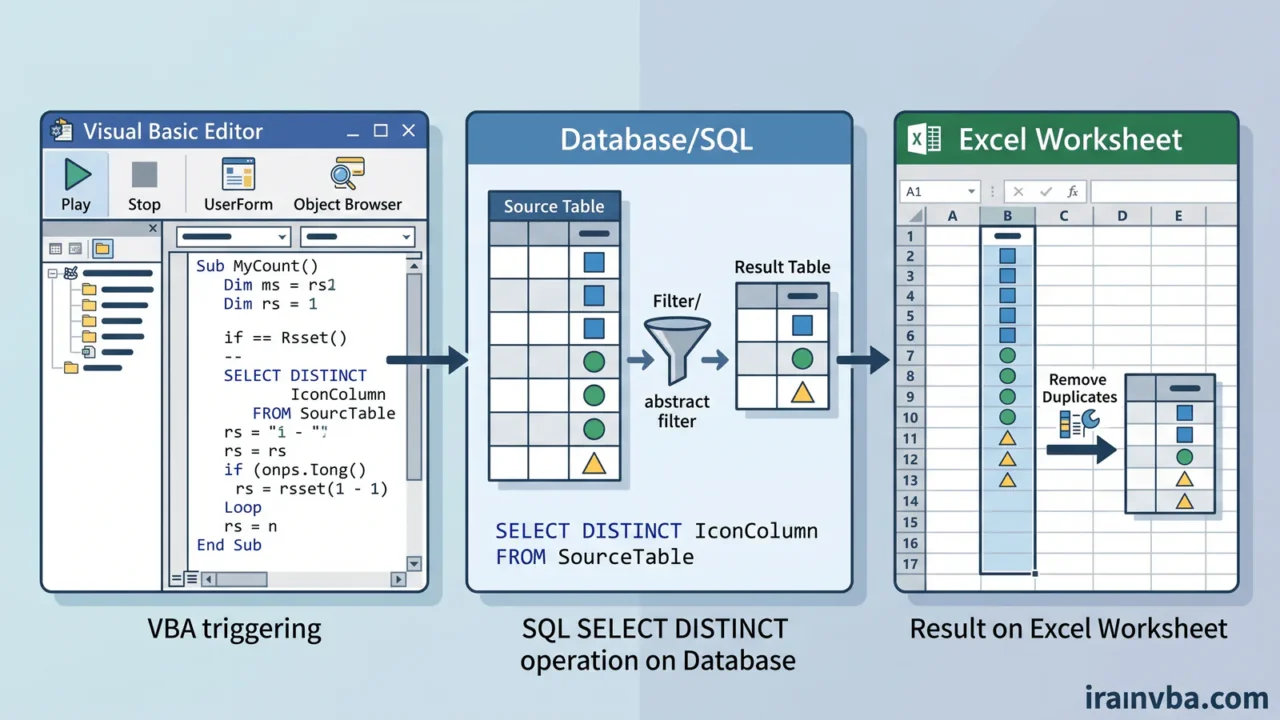
Access SQL DISTINCT: Removing Duplicate Results
When running database queries, it is extremely common to retrieve rows with repetitive information. The Access SQL DISTINCT keyword is your primary tool for filtering out these duplicates, returning only unique sets of data.
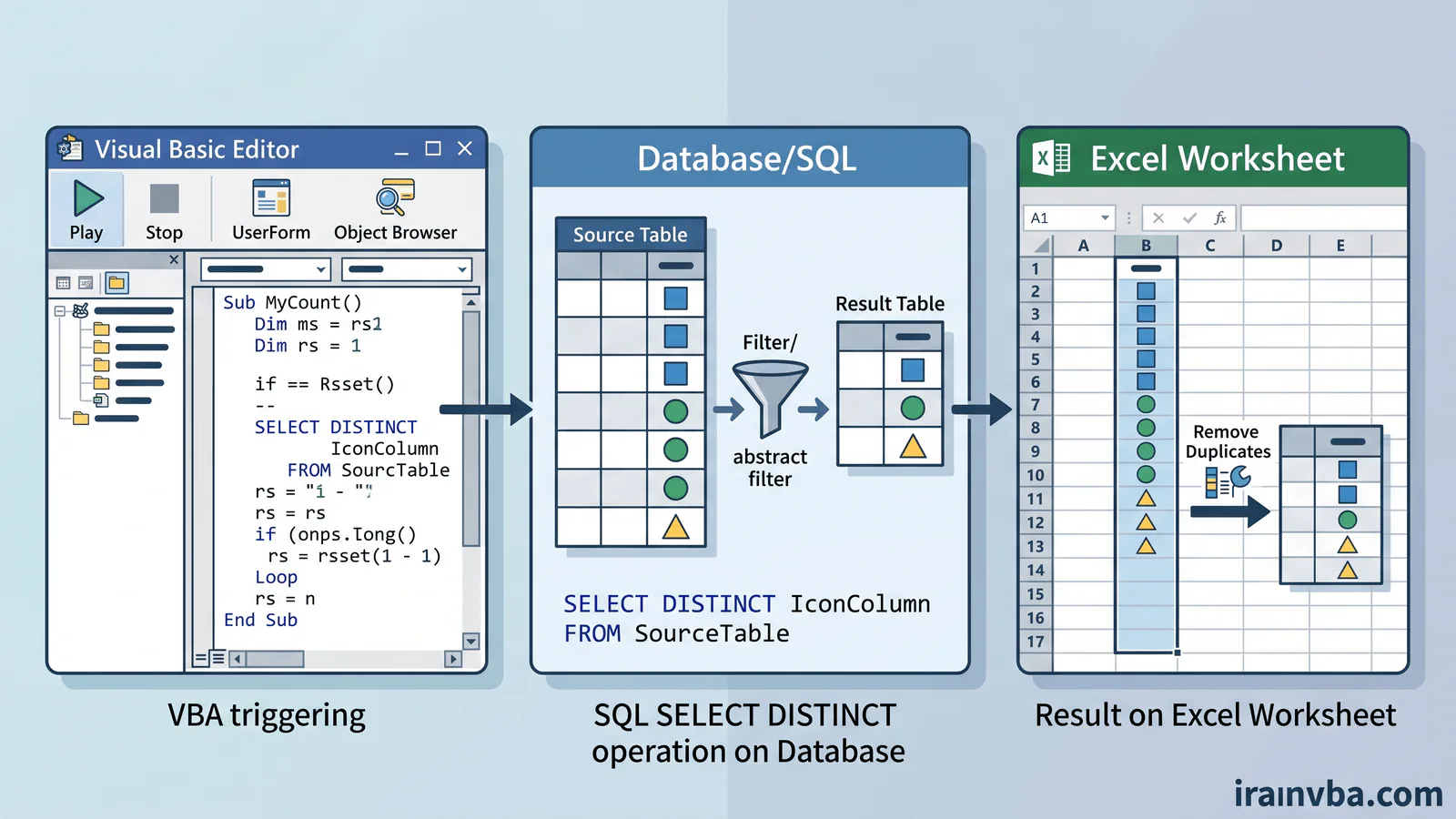
What is the DISTINCT Keyword?
The DISTINCT keyword is an SQL clause used immediately after the SELECT statement. It instructs the Microsoft Access database engine to omit records that contain duplicate data in the selected fields, presenting a clean list of unique values.
Why is it important?
Using this clause is critical when:
- Generating summary reports (e.g., extracting a list of unique cities where customers are located).
- Populating drop-down combo boxes in VBA UserForms to ensure users don’t see repetitive options.
- Cleaning up raw datasets before performing complex JOIN operations.
Syntax
The keyword is placed right after SELECT:
SELECT DISTINCT ColumnName1, ColumnName2
FROM TableName;
Examples
Suppose you want to know all the unique countries your clients reside in:
SELECT DISTINCT Country
FROM Customers;
Practical VBA Examples
You can use the DISTINCT keyword when generating recordsets dynamically within your Access VBA projects:
Option Explicit

Sub GetUniqueDepartments()
    Dim db As DAO.Database
    Dim rs As DAO.Recordset
    Dim strSQL As String

    Set db = CurrentDb()
    ' Ensure we only fetch unique department names
    strSQL = "SELECT DISTINCT DepartmentName FROM Employees"
    Set rs = db.OpenRecordset(strSQL, dbOpenSnapshot)

    If Not rs.EOF Then
        rs.MoveFirst
        Do Until rs.EOF
            Debug.Print rs!DepartmentName
            rs.MoveNext
        Loop
    End If

    rs.Close
    Set rs = Nothing
    Set db = Nothing
End Sub
Code Explanation
In this VBA macro, we formulate an SQL string containing SELECT DISTINCT DepartmentName. We open a Read-Only Snapshot recordset. Because we used DISTINCT, the resulting recordset only contains one instance of each department, even if hundreds of employees belong to the same department.
Common Errors
- Using DISTINCT with Memo/LongText fields can cause truncation or unexpected errors in older Access databases.
- Assuming DISTINCT operates on a single column when multiple columns are selected. DISTINCT evaluates the entire row based on all columns listed in the SELECT clause.
Best Practices
- Only use DISTINCT when strictly necessary, as forcing the database to evaluate and eliminate duplicates adds computational overhead.
- Use
DISTINCTROW(an Access-specific extension) if you need to return unique rows based on the entire record structure, even if you are only selecting a few fields.
Related Topics
- Access SQL GROUP BY and Aggregate Functions
- Subqueries and Correlated Queries in VBA
Frequently Asked Questions About Access SQL DISTINCT
What does Access SQL DISTINCT do?
It filters the output of a SELECT query so that only completely unique rows are returned, automatically omitting any duplicate records.
How does DISTINCT work with multiple columns?
When you select multiple columns, the DISTINCT keyword evaluates the combination of those columns. It only removes a row if every specified column matches exactly with another row.
Does DISTINCT slow down database queries?
Yes, because the database engine must sort and compare all output rows to eliminate duplicates, which requires extra processing time compared to a standard query.
What is the difference between DISTINCT and DISTINCTROW?
DISTINCT applies only to the fields specified in the SELECT clause. DISTINCTROW evaluates the uniqueness based on the entire underlying table row, regardless of which fields are selected.
Can I use DISTINCT with a COUNT function?
Unlike SQL Server, standard Access SQL does not natively support COUNT(DISTINCT ColumnName). You must use nested subqueries to achieve this result in Access.
Conclusion
The Access SQL DISTINCT command is incredibly powerful for cleaning reporting outputs and preventing redundant UI elements. Understand its scope when combining multiple columns to ensure your VBA applications deliver precise and accurate intelligence.
Read More
Master Access SQL Constraints and Validation Rules
Access SQL Views and Saved Queries: Complete Guide
Access SQL ORDER BY: Sorting Query Results Quickly
Access SQL Data Types and Field Definitions Guide
Crosstab Queries with TRANSFORM and PIVOT in Access SQL