Access SQL ORDER BY: Sorting Query Results
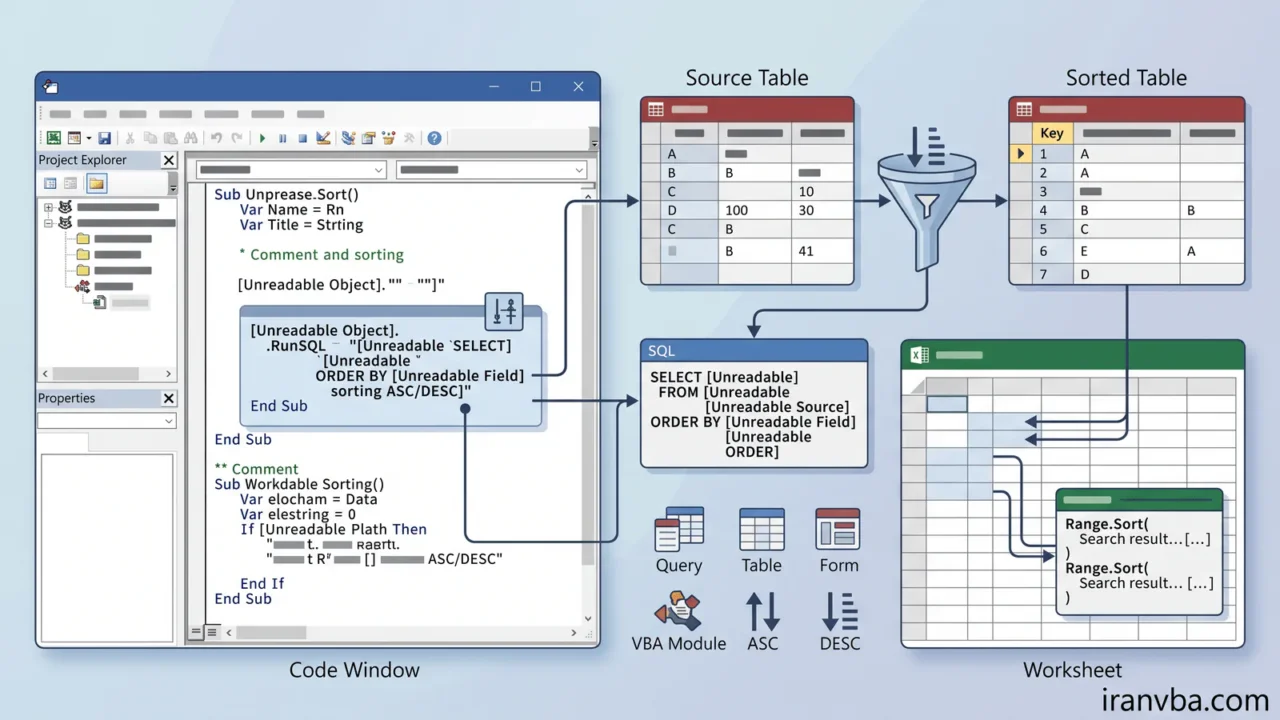
Data is rarely useful when presented randomly. The Access SQL ORDER BY clause allows developers to arrange their recordsets into a logical, readable structure, sorting data alphabetically, chronologically, or numerically.
What is the ORDER BY Clause?
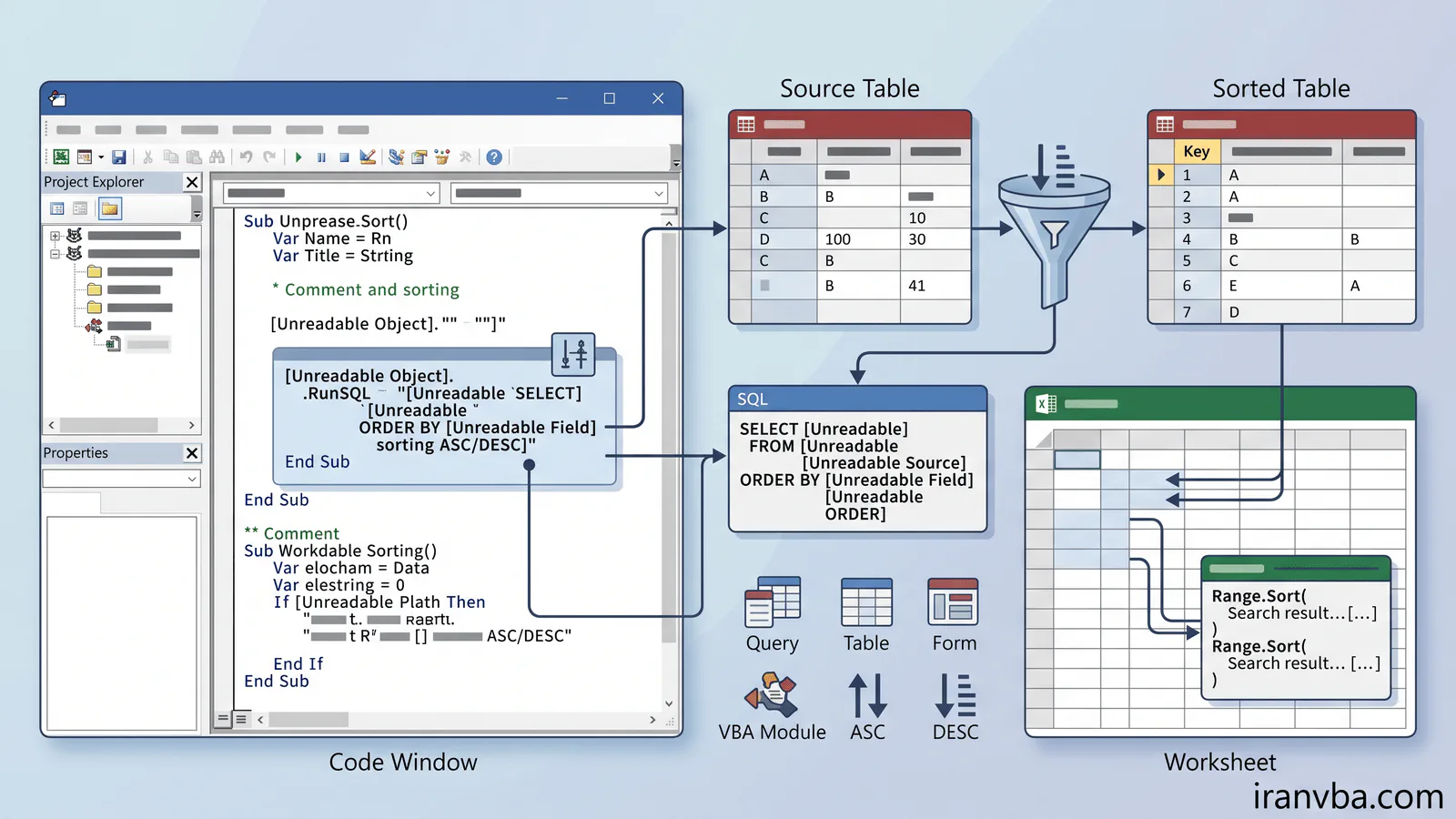
The ORDER BY clause is an SQL statement used to dictate the sorting logic of a result set. By default, relational databases do not guarantee any specific row order. Therefore, if the output order matters to your application, you must explicitly declare it.
Why is it important?
Applying sorting ensures that:
- Financial ledgers are displayed chronologically.
- Employee directories are listed alphabetically by Last Name.
- Reports showcase the highest performing products at the top.
Syntax
The clause is placed at the very end of your SQL statement. You can specify ASC (Ascending) or DESC (Descending):
SELECT ColumnName1, ColumnName2
FROM TableName
ORDER BY ColumnName1 ASC, ColumnName2 DESC;
Examples
To sort employees alphabetically by their last name:
SELECT FirstName, LastName
FROM Employees
ORDER BY LastName ASC;
Practical VBA Examples
In VBA, you often need to generate sorted lists to populate list boxes dynamically:
Option Explicit

Sub LoadSortedData()
    Dim db As DAO.Database
    Dim rs As DAO.Recordset
    Dim strSQL As String

    Set db = CurrentDb()
    ' Sort by Department (A-Z) and then by Salary (Highest to Lowest)
    strSQL = "SELECT EmployeeName, Department, Salary " & _
             "FROM Employees " & _
             "ORDER BY Department ASC, Salary DESC;"

    Set rs = db.OpenRecordset(strSQL, dbOpenSnapshot)

    If Not rs.EOF Then
        Do Until rs.EOF
            Debug.Print rs!Department & " | " & rs!EmployeeName & " | " & rs!Salary
            rs.MoveNext
        Loop
    End If

    rs.Close
    Set rs = Nothing
    Set db = Nothing
End Sub
Code Explanation
The macro creates a query that first organizes the output by Department ascending. Whenever two or more employees belong to the same department, the secondary sort (Salary DESC) takes effect, ensuring the highest paid employee in each department is listed first.
Common Errors
- Forgetting that missing the ASC/DESC keyword defaults to ASC.
- Trying to sort by a column that contains complex object data types, which Access cannot inherently sort.
Best Practices
- Always index columns that are frequently used in ORDER BY clauses to drastically improve query performance.
- Avoid sorting large datasets unnecessarily if the end-user application (like an Excel pivot table) will perform its own sorting anyway.
Related Topics
- Filtering with the WHERE Clause
- Using Indexes in Access
Frequently Asked Questions About Access SQL ORDER BY
How do I use ORDER BY in Access SQL?
You append the ORDER BY clause to the end of your SELECT statement, followed by the column name and either ASC for ascending or DESC for descending order.
Can I sort by multiple columns?
Yes, separate multiple column names with commas. Access sorts the first column, and then uses the subsequent columns to resolve any ties.
What is the default sort order if I don’t specify ASC or DESC?
If you omit the keyword, the database engine will automatically default to ASC (Ascending order).
Does sorting impact query performance?
Yes, especially on large tables without indexes. The engine must scan and rearrange the data in memory. Indexing the sorted columns minimizes this delay.
Can I sort by a column that is not in the SELECT list?
Yes, in standard Access SQL, you can order by any field present in the source table, even if it is not explicitly retrieved in the SELECT output.
Conclusion
The ORDER BY clause is essential for presenting meaningful, organized data to end-users. By combining multiple sorts and utilizing ASC/DESC intelligently, you ensure your VBA reports and Access forms are professional and highly readable.
Read More
Master Access SQL Constraints and Validation Rules
Access SQL DISTINCT: Remove Duplicate Results Easily
Access SQL Views and Saved Queries: Complete Guide
Access SQL Data Types and Field Definitions Guide
Crosstab Queries with TRANSFORM and PIVOT in Access SQL